This article explains how to use the "Copy/Paste for several copies" feature in Wezen Write.
Affected users
- This feature requires a specific permission to be available, if you do not see it you most likely do not have that permission for your account.
What this feature is used for
The "Copy/Paste for several copies" feature is specifically designed for cases where you need to replicate the content from one or several fields in a given copy to similar fields in other copies. This can be very useful when dealing with master copies and their variants for example.
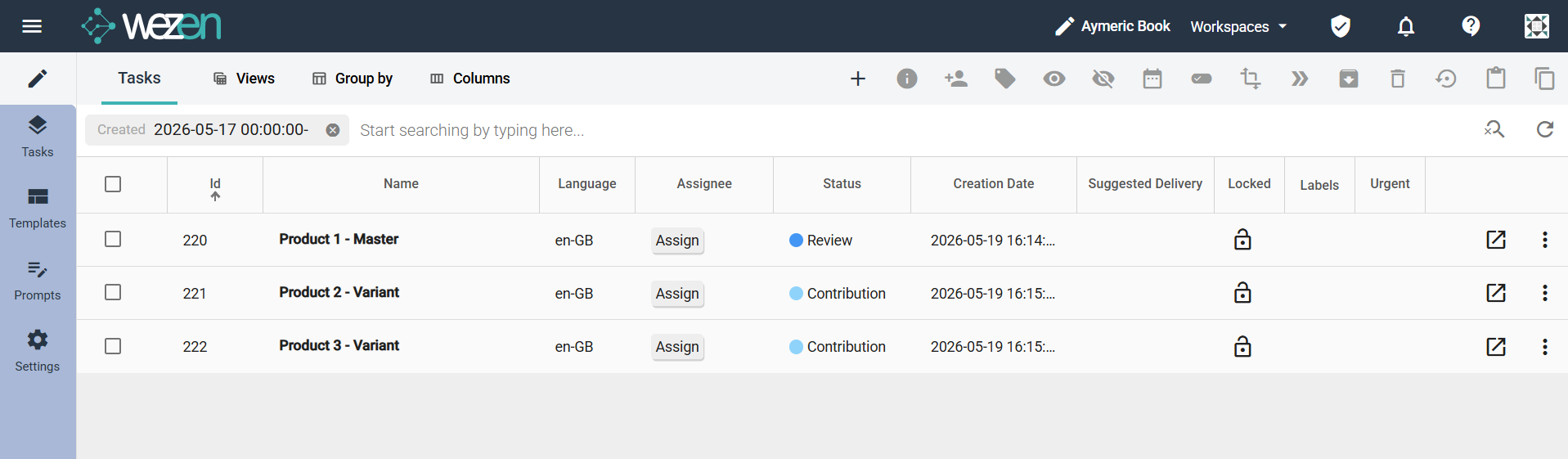
To illustrate this, let's use an example with 3 copies, that all have the same list of fields:
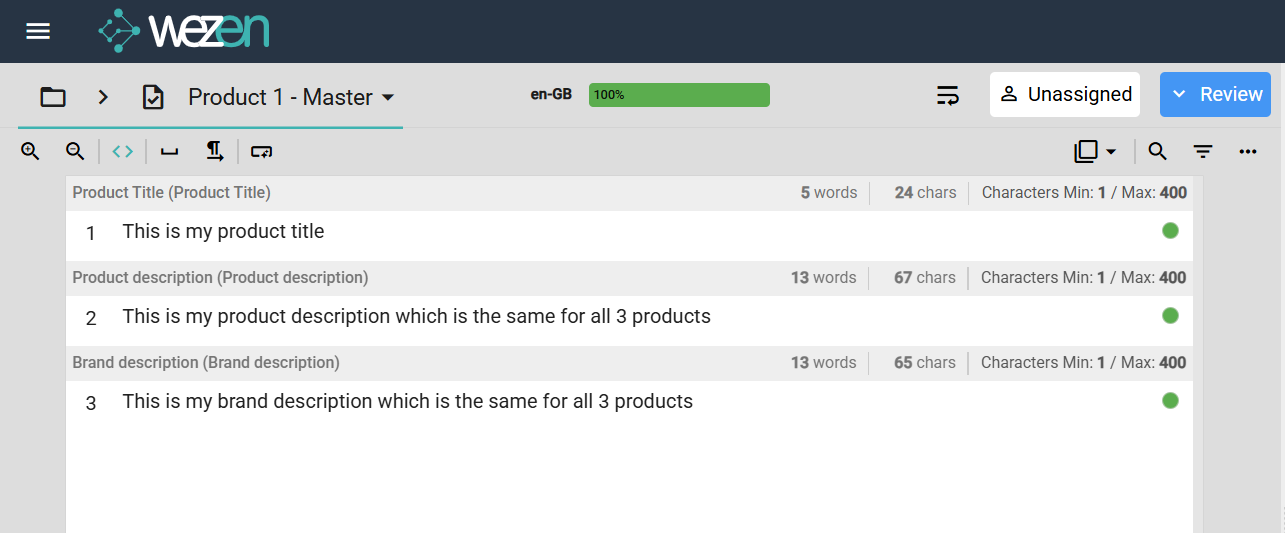
The 1st copy has been filled and pushed to review already:
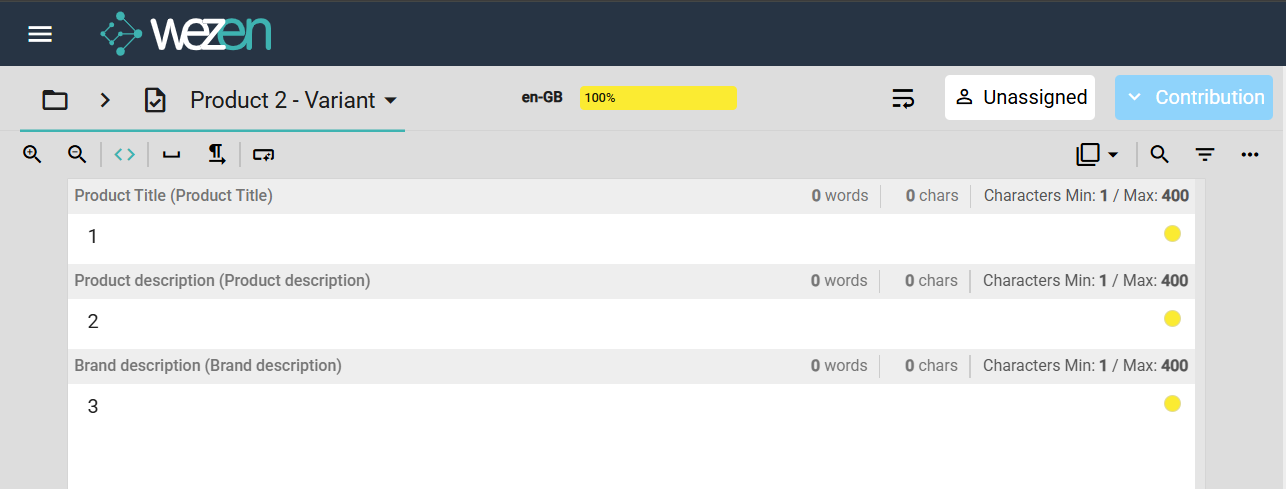
and we want to replicate some of its content to the two others, which are empty for now:
How to use it
To use this feature, you must first select both the copy you want to use as a source for the content to replicate and the copies on which you want to replicate the content, via their checkboxes on the left of the task list. This will unlock the copy/paste button in the top right corner
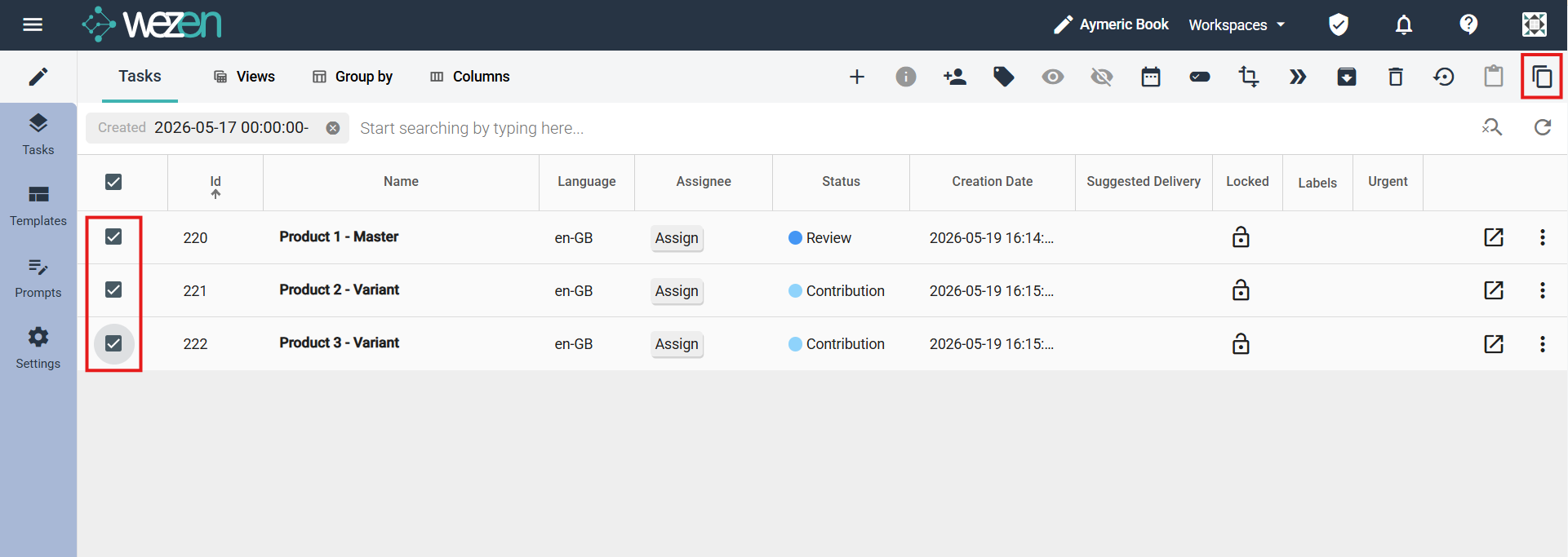
Click on that button, which will open a popup window:
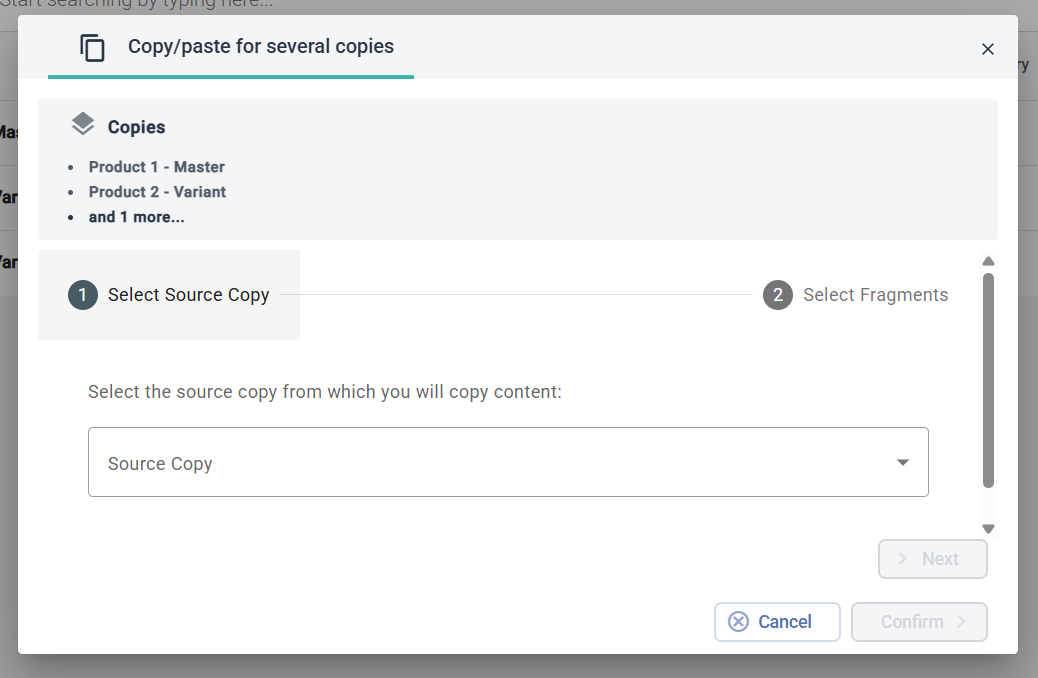
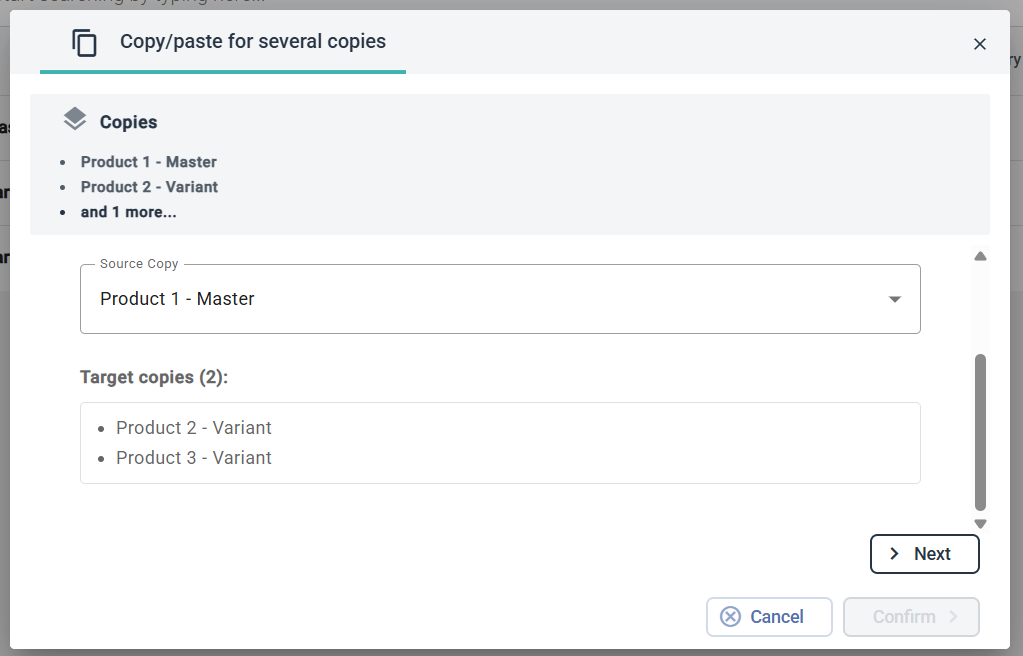
First you must select the source copy, the one from which the content will be copied. Once done, click next:
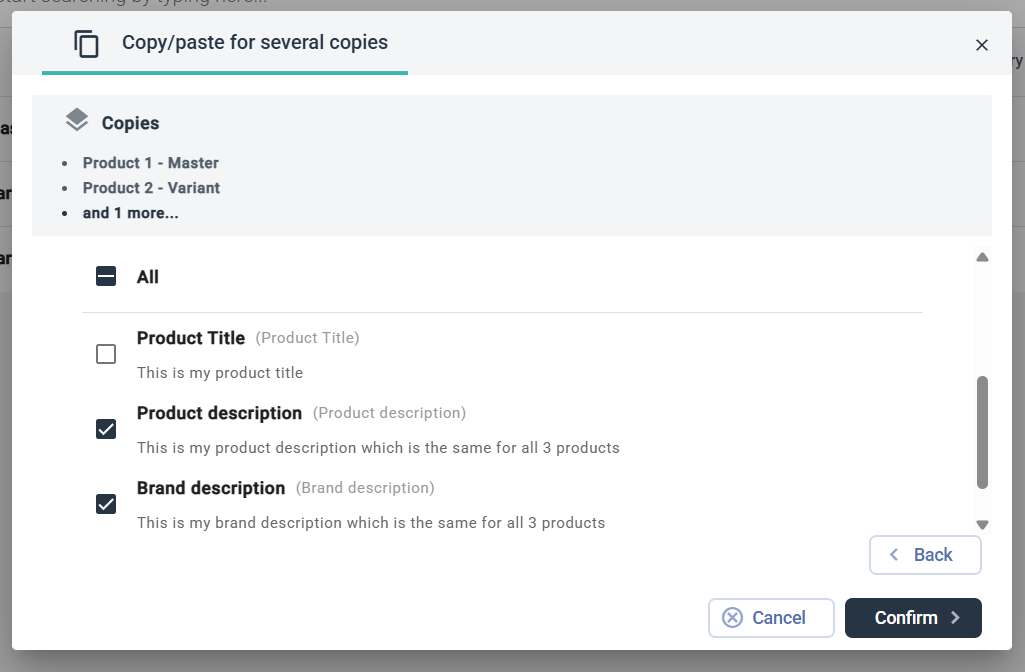
Then, you must select which fragments of the source copy must be replicated in the target copies. Please note that in order for a fragment's content to be replicated, a fragment with a similar name must exist in the target copies. If there is not match for a given fragment in the target, that fragment will be skipped for that particular copy.
In the example, we only want to replicate the Product & Brand description, but not the product title. Once done, click confirm:
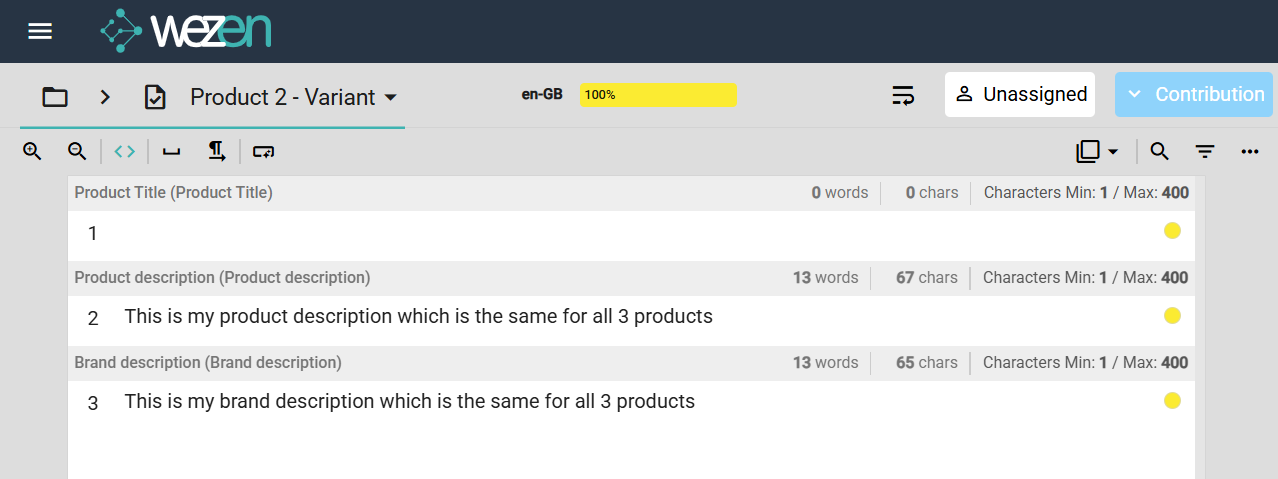
If we then take a look at the second copy, we can see that the two fields that were previously empty have been filled with the content from the first copy: